










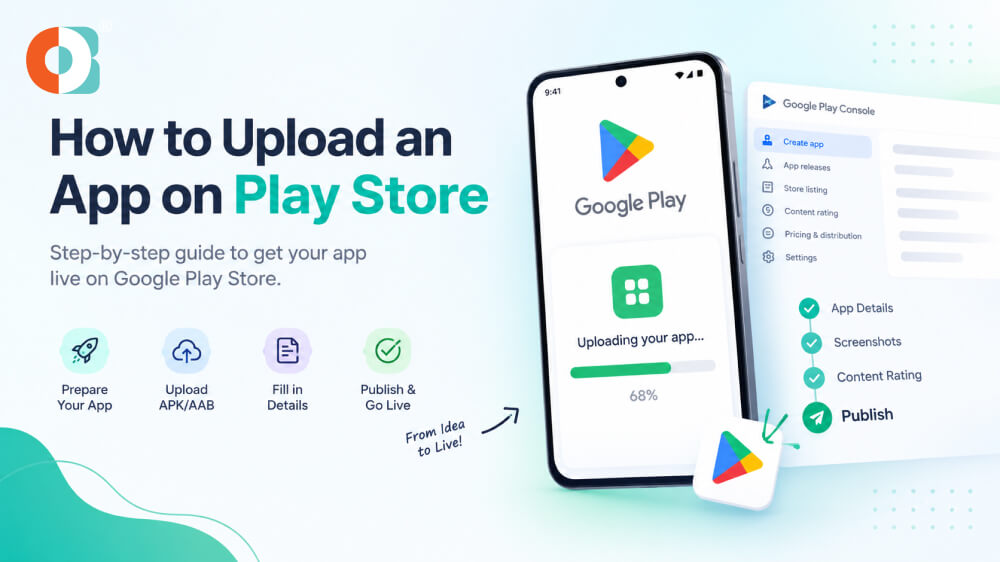
How to Upload an App on Play Store: A Step-by-Step Guide
Introduction
As of 2026, building an Android app that can give your business the desired competitive edge is itself a huge challenge. But getting it published on Google Play and letting users finally find and download it is a completely different story. You may have a highly polished product, a launch campaign ready to go, and a team eagerly waiting for the release day. After all this, you discover that your app submission plans need a couple of changes so that Google can approve the product. And the worst part is when you are publishing your first app. It’s highly unlikely that you know which files, declarations, and account requirements you need to get right.
Now, the actual trouble is that publishing an app isn’t simply a matter of uploading your build and clicking on the “SUBMIT” button. Whether it’s the app bundle, store listing, or privacy disclosure, Google Play has very specific requirements. If you miss any, your launch can stall way before your first user opens it.
Having said that, we have prepared a detailed guide here on how to upload app on the Play Store, with practical instructions for each stage. No more going back and forth or worrying about last-minute surprises!
Things to Prepare Before Uploading Your App
Google Play Console Developer Account
Before you even think about release dates, get your Google Play Console account verified. Registration costs around $25 as a one-time fee, along with identity verification as per the platform’s security policies. Choose a personal account if you are publishing independently. In case the app belongs to a business, go for the organization account. However, for the latter one, you will need to provide details about the D-U-N-S number, alongside some add-on verification data.
New personal accounts are usually subject to specific testing requirements before production access. Make sure to complete these steps as early as possible. That’s because account verification and testing may delay your production release plans even when the product is fully ready for use.
Signed Android App Bundle (AAB)
Your developers should prepare a release-ready Android App Bundle, the format that’s necessary for Google Play Store publish. Before you upload, you must verify:
- The application ID
- Version code
- Minimum supported Android version
- Release signing configuration
Google uses Play App Signing to manage the app-signing key. This encrypted cryptographic “master stamp” is required to digitally sign the final APKs delivered to the users’ devices. As a thumb rule, keep your signing credentials secure and well-protected to avoid any sort of legal obligation. Also, make sure your team doesn’t lose access to the release process while preparing valid updates in the coming years.
App Icon, Screenshots, and Store Listing Details
Prepare the store listings you have before proceeding with the submission procedure, and not after you are ready with your build. You will need to arrange and finalize:
- An app name of 30 characters
- Short description for 80 characters
- Full description with a maximum of 4K characters
- High-resolution icon
- Screenshots of the genuine app screens
- Feature graphic
Privacy Policy and Data Safety Form
Both of these need to describe what your Android app actually does once it collects user data. For this, begin by reviewing the code and every third-party SDK you have put in place to collect or share information like:
- Location
- Contact details
- Device identifiers
- Usage data
Whether it’s the relevant purposes for collecting these datasets or the retention and security strategies, everything needs to be documented in your app’s privacy policy. If users are allowed to create an account within your product, check Google’s account-deletion requirements, including the applicable web deletion mechanism. If you are worried about the technology stack or the allowable SDKs, check out this ultimate guide on mobile app development in 2026.
App Content Rating and Target Audience
Google Play has mandated that every app submission follows a content rating questionnaire and that the answers you give should reflect the actual content and functionality. Even the slightest discrepancy, and your submission will get rejected or delayed. For example, you have a social media app that you want to upload on Google Play. Since it will have user-generated content, you need to ensure the answers do account for the materials users can post. At the same time, an FPS gaming app should accurately disclose relevant violence or other mature content, if any. Specifying the intended user group by age is a mandate, something you cannot overlook at any cost.
App Permissions and Policy Compliance
Check what access your app needs against the features that your target users are most likely to use. Remove any type of unused permission. Verify that your app requests sensitive access only at the appropriate points along a user journey workflow. Based on these, you may need:
- A declaration of all the permissions
- Eligibility justification
- Prominent disclosure and consent
Step-by-Step Guide to Upload an App on Play Store
-
Step 1: Sign In to The Play Console
First, open the Google Play Console and sign in with your verified developer account. There, you will see an option stating “Create App”. Click on that. Once done, enter the details like:
- Your app’s name
- Default language of the product
- App type
- Free or premium
Confirm all the required declarations and create the app. Make sure to choose the product’s name and package carefully. That’s because if you need to change the package later, it will need a separate app.
-
Step 2: Complete Your App's Store Listing
Now, open the store listing section and add the following details carefully without any error:
- Your app’s name
- Short description
- Icon
- Full description
- Screenshots
- Feature graphic
Complete the required contact information form and provide the privacy policy URL. Make sure to review all the listings on different screen sizes. This will help you to understand if the screenshots, text, and branding represent the actual product consistently or there’s a break.
-
Step 3: Set Up App Access, Ads, and Content Declarations
Now complete all three sections in the Play Console. In case your app needs a login, you will have to provide working access instructions and any sort of necessary demo credential to the reviewers. Apart from this, make sure to declare if your app contains any ad, answer the content rating questionnaire, and identify the intended age group.
-
Step 4: Complete the Data Safety Form and Privacy Policy
Open the Data Safety section and declare the type of user data your Android app might collect, share, and process. Also, you do need to consider the information that integrated SDKs are likely to handle. Explain applicable security practices and data deletion options accurately. Add the publicly accessible privacy policy URL wherever applicable.
-
Step 5: Upload Your Android App Bundle
In your chosen release stack, create a new one and upload the signed AAB. Enter notes that describe the changes users can expect after the final launch. Play Console will then process the bundle and generate warnings or errors if something suspicious gets flagged. Check the following entities before proceeding further:
- Package identity
- Version code
- Signing configuration
- Compatibility settings
-
Step 6: Configure and Run Your Testing Track
Depending on the testing needs and account requirements, you can opt from internal, open, or closed test approaches for your Android app. Ask testers to exercise core workflows, including:
- Registration
- Payments
- Notifications
- Account deletion
-
Step 7: Submit The App for Review
Once the required setup tasks and release checks are done, your Android product is good to go for the final submission. Google will review the submission for:
- Policy compliance
- Functionality
- Required disclosures
The key here is to avoid scheduling the launch based on a presumed date. Instead, what you should do is plan a buffer period so that you can accommodate any form of requested changes easily without having to tell your users that the launch might get postponed.
Google Play Store App Review Process — What to Expect
You have uploaded your app, completed the required declarations, and submitted the release. Now comes the most challenging and intimidating phase, which is Google’s review process. Here, your product will be vetted against the platform’s policies before it can reach your target audience. Reviewers primarily assess:
- If your app works just as you have described
- If it can handle user-related data appropriately
- If it requests permissions only for legitimate purposes
- If it meets applicable requirements for payments, content, and user safety
Most reviews get completed within 7 days or so. However, this is not some benchmark you can rely on blindly. That’s because multiple factors will affect the timeline, including:
- Your first publication
- A new developer account
- Sensitive app functionality
- Policy concerns
In case Google rejects your submission, rebuilding the entire product isn’t a necessity. Open the policy status section in Play Console and go through the specific reasons for rejection that will be mentioned there. Sometimes, the issue is quite simple, like:
- A missing disclosure
- An inaccessible reviewer account
- A mismatch between your declared privacy policy and the app’s functionality
In certain cases, you may have to change an underlying product feature or the permission list it needs.
Throughout the entire process, you have to be cautious and monitor Play Console. You can easily track requests for additional information, status changes, and policy notifications. After the review is complete, check if your app is available in the intended countries where you planned the launch. Only then make the public announcement.
Common Reasons for App Rejection
Imagine planning your Android app launch for weeks, only to discover that Google has rejected your submission over a disclosure you somehow overlooked or a feature that failed to work as per expectations. These setbacks are actually avoidable. So, before you submit, do keep an eye on these mistakes so that you won’t have to see a “REJECTED” status on Play Console.
- Missing, inaccessible, or inconsistent privacy policy with respect to the data your app and its associated third-party SDKs collect
- App suddenly crashing during reviews or login credentials not working can lead to a rejection
- Requesting sensitive device or user information, like access to personal images or location, without adhering to Google’s requirements for the intended use
- Incomplete testing requirements that are applicable to the developer account
- Reviewers having access to login-protected features of your Android app
- Content rating, advertising disclosures, target audience, or other necessary declarations having inaccurate or missing information
- Payment flow violating Google Play’s billing policies for digital products or subscriptions
Tips to Get Your App Approved Faster
There’s no doubt that even a delay of a day or two will throw off your marketing plans, customer onboarding, and revenue targets, if not more. Even though Google’s review timeline is outside your control, at least you can make the submission process easier. For this, all you have to do is evaluate the app by addressing the common problems before they come to the radar of the review team. A few checks before you hit the Submit button will save you from another round of corrections.
Having said that, let’s find out what you can do!
- Test the release build on real devices, not just an emulator, so that you can easily catch failures in sign-in or navigation workflows
- Make sure your privacy policy, Data Safety form, and actual data collection practices are on the same track
- Remove any type of unnecessary permission and always prepare a clear disclosure statement for Google
- Give reviewers working demo credentials and precise instructions so that they can access features behind the login or subscription logic
- Check the store listing against the actual app and remove any type of unsupported claim or outdated screenshot
If you want to expand the outreach for your mobile app, limiting yourself only to Google’s Play Store won’t be economical. Explore here the top third-party app stores where you can list your product and create more revenue channels.
What Happens After Your App is Live?
Getting your app onto Google Play’s list is hands-down a milestone. However, the real test commences once users start downloading it. So, make sure to pay attention to a couple of attributes in Google Play Console, including.
- Installation trends
- User engagement
- Drop-off points
In addition, check on crashes, loading times, and other performance-related issues through Android vitals. Keep a tab on Google’s evolving policy and target API requirements. These insights will tell you where users struggle and which improvements actually deserve your priority focus. Explore the top Android app ideas that can disrupt the market norms in 2026 and beyond so that you can design your product accordingly and increase its chance of adoption.
Conclusion
Publishing your Android app on Google Play comes down to getting three things right. First, it’s preparing a compliant app. Second, it’s completing the required testing and declarations. Third, it’s submitting a release that’s ready for review. The key here is to focus on a well-prepared submission, as that will help you save time before launch and give your app a stronger foundation for growth. A successful launch will get your app into users’ hands. But it’s only a consistent improvement strategy that will give them a reason to keep using the product.
Frequently Asked Questions
If you remove the expenses required for app development and maintenance, then you just have to pay $25 as a one-time registration fee to upload your product on the Google Play Store.
A seven-day timeline is the usual benchmark for Google’s review process of app submissions. However, sometimes, it can be extended for some more days. It usually depends on whether the reviewers encountered a discrepancy or not and if your product needs another round of correction.
No, you cannot upload your developed Android app for free on the Play Store. If you are new, you need to pay a one-time registration fee so that you can create a developer account. After this, you won’t be charged anymore, no matter how many times you upload your product.
Google can reject an app submission on its Play Store due to multifarious reasons. It can be a missed disclosure, policy violation, sudden crash during review, or misleading store listing. So, keep an eye on the Play Console to know the exact reasons for which your submission was rejected.
Yes, you will have to prepare a proper privacy policy and mention its accessible URL as a part of the submission pre-requisite for your app on Google Play.

.jpg)